Preview: copy pending YouthWell review

YouthWell New Hampshire

A calm place to check in, made for you.

YouthWell helps young people notice how they're doing, reach for tools that help, and stay connected to the adults who care about them. Built for New Hampshire youth, families, and educators.

Young people choose their own look. Try it.

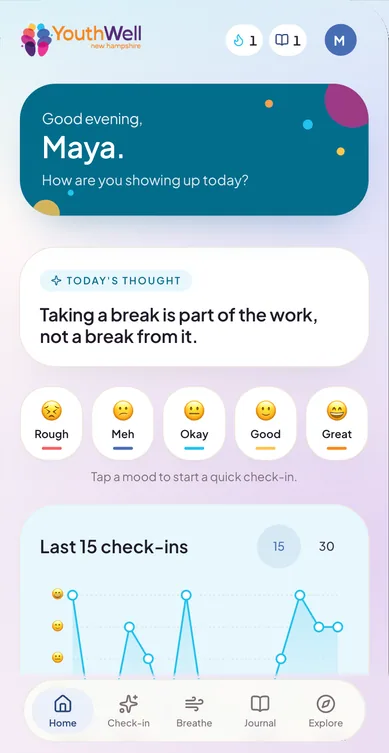
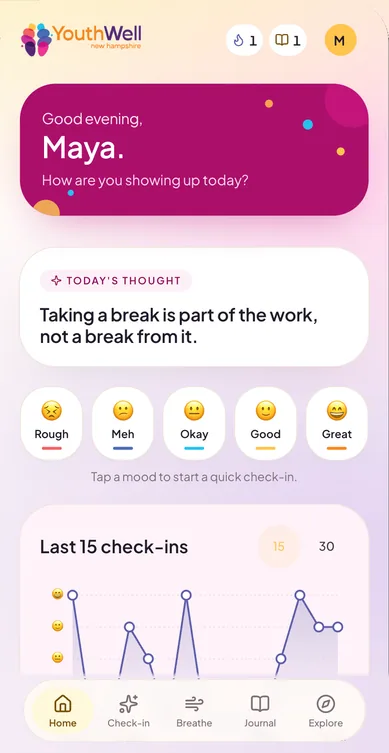
YouthWell home screen in the Bright theme: a violet greeting card that says “Good evening, Maya. How are you showing up today?”, today's thought, five mood buttons from Rough to Great, and a chart of recent check-ins.
The same YouthWell home screen in the Coastal theme, with a deep teal greeting card, cyan chart line and cobalt accents.
The same YouthWell home screen in the Bloom theme, with a magenta greeting card, periwinkle chart line and yellow accents.

For young people

Ages 11 and up

A few quiet minutes that are all yours. Check in, breathe, write it down, find what helps nearby, and see yourself showing up.

Try a check-in

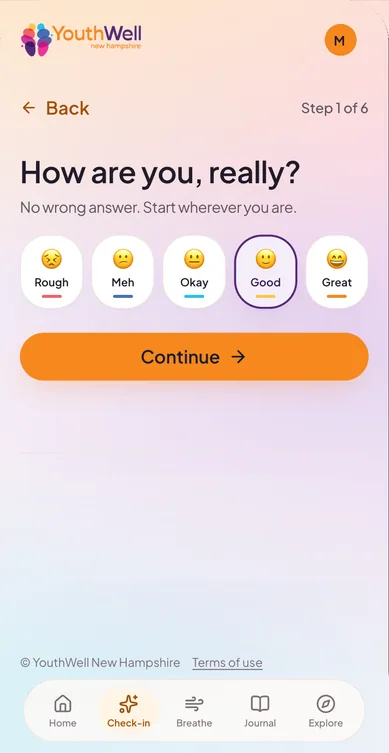
How are you, really?

Just a demo. Nothing you tap here is saved.

Pick a mood to begin

Six quick steps. Only the mood is required.

Check-in step 1 of 6, “How are you, really?”, with five mood buttons and Good selected.
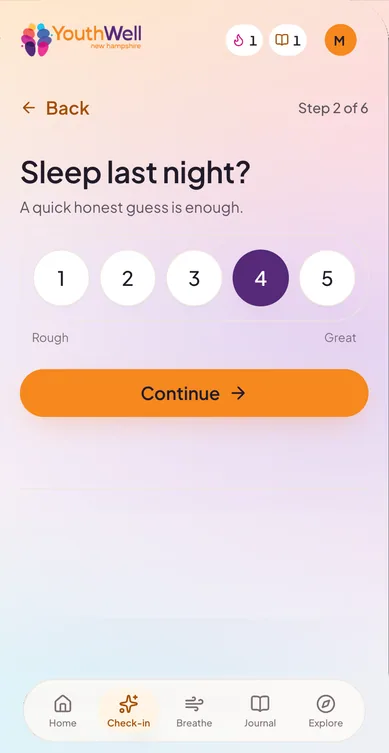
Check-in step 2 of 6, “Sleep last night?”, a 1 to 5 scale from Rough to Great with 4 selected.
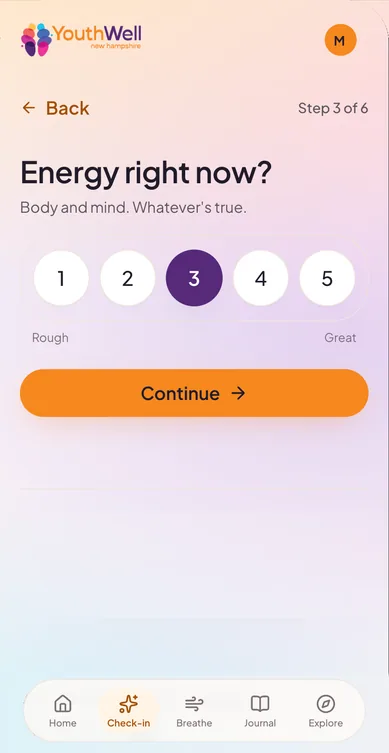
Check-in step 3 of 6, “Energy right now?”, a 1 to 5 scale with 3 selected.
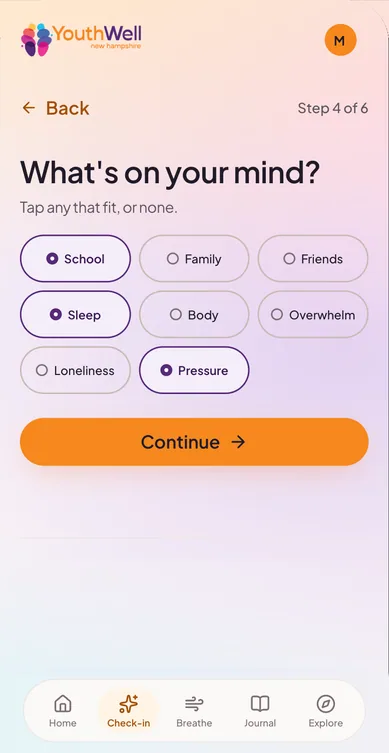
Check-in step 4 of 6, “What's on your mind?”, topic chips with School, Sleep and Pressure selected.
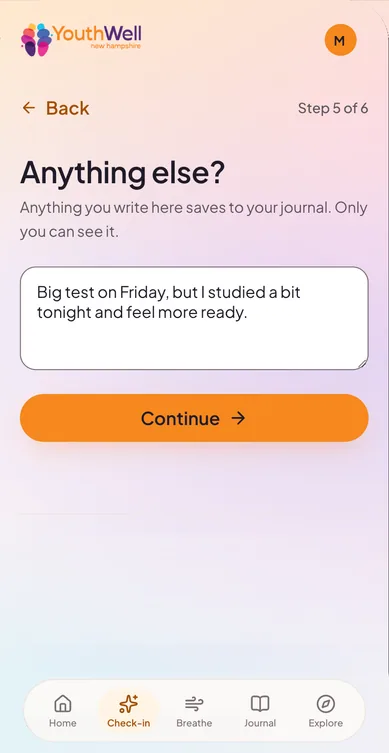
Check-in step 5 of 6, “Anything else?”, an optional note that saves to the journal, reading “Big test on Friday, but I studied a bit tonight and feel more ready.”
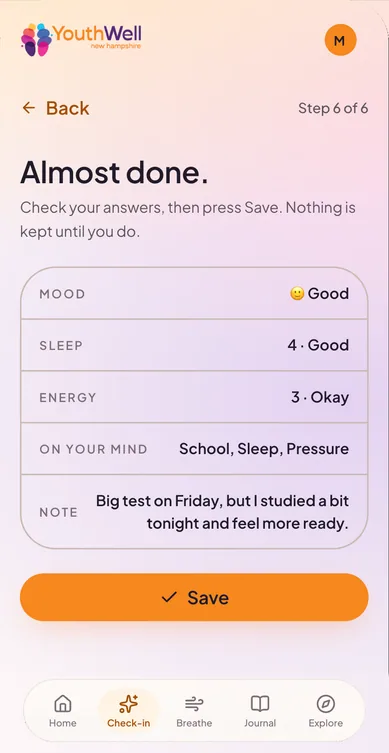
Check-in step 6 of 6, “Almost done.”, a review of mood, sleep, energy, topics and note with a Save button. Nothing is kept until you press Save.
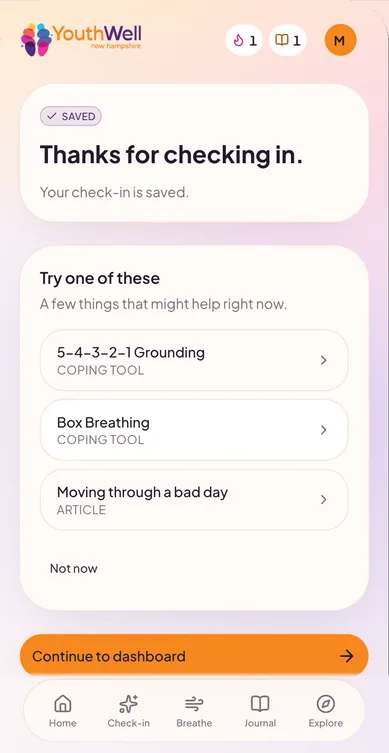
Check-in saved after a low mood, with a “Try one of these” card suggesting 5-4-3-2-1 Grounding, Box Breathing and the article “Moving through a bad day”.
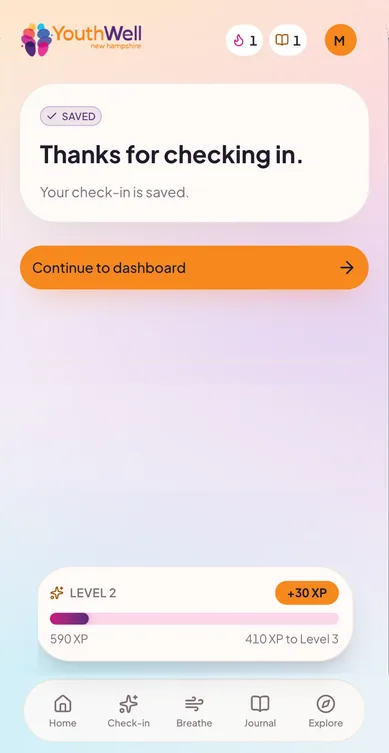
Check-in saved: “Thanks for checking in.” with a toast showing Level 2 and plus 30 XP.

1Check in

“How are you, really?”

Six quick steps: mood, sleep, energy, what's on your mind, an optional private note, and a review. Only the mood is required, and skipped steps stay skipped. Check in as often as you like.

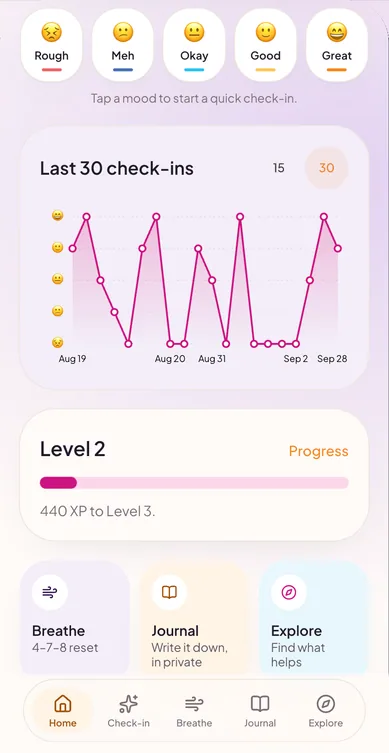
Tapping a mood on the home screen starts a quick check-in. A chart shows your last 30 check-ins, and there's a fresh “Today's thought” to start from each day.
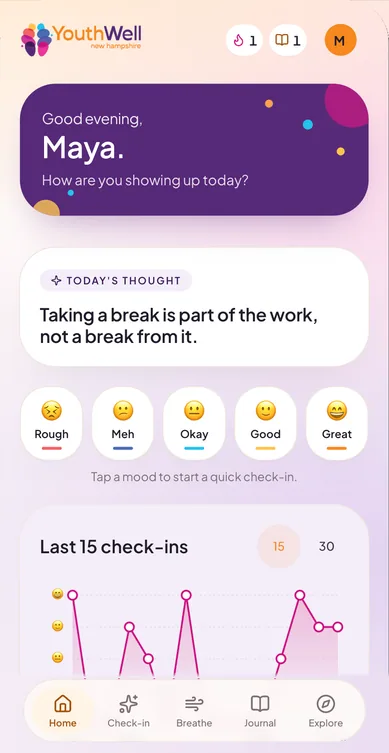
YouthWell home screen in the Bright theme: a violet greeting card that says “Good evening, Maya. How are you showing up today?”, today's thought, five mood buttons from Rough to Great, and a chart of recent check-ins.
Tap a mood on Home to start a quick check-in.
Home screen scrolled to a chart titled “Last 30 check-ins”, plotting moods from Rough to Great, above a Level 2 progress bar and shortcuts to Breathe, Journal and Explore.
Your last 30 check-ins, at a glance.

2Breathe

Something to do with your breath, right now.

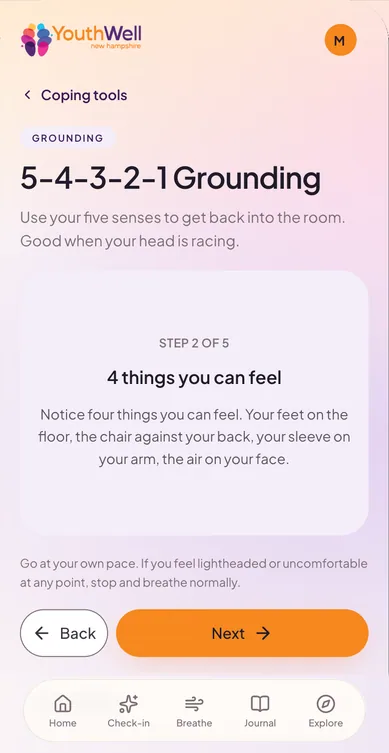
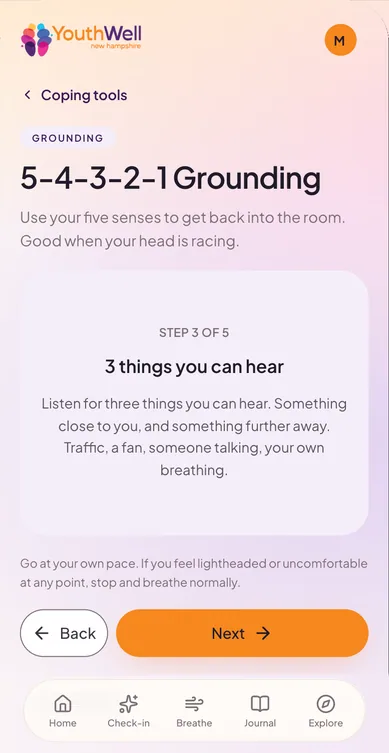
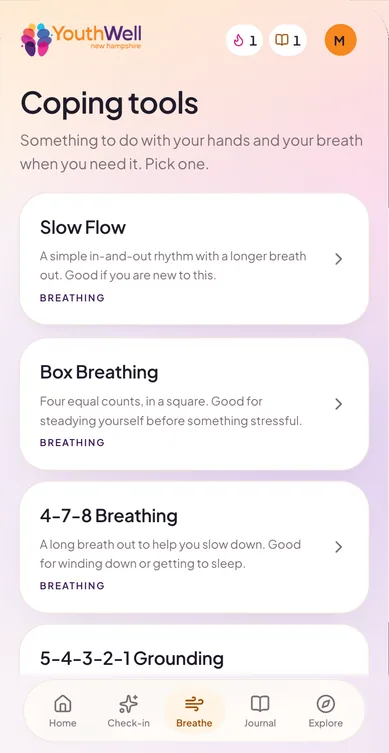
Four coping tools: Slow Flow, Box Breathing, 4-7-8 Breathing, and 5-4-3-2-1 Grounding. A first-time walkthrough shows how each one works.

“You can do it anywhere, including in class or before a test, and nobody will notice.”

Coping tools list: Slow Flow, Box Breathing, 4-7-8 Breathing and 5-4-3-2-1 Grounding, each with a one-line description.
The four coping tools.

Breathe with us

4s in, 6s out. No hold.

Ready

0 cycles

Go at your own pace. If you feel lightheaded or uncomfortable at any point, stop and breathe normally.

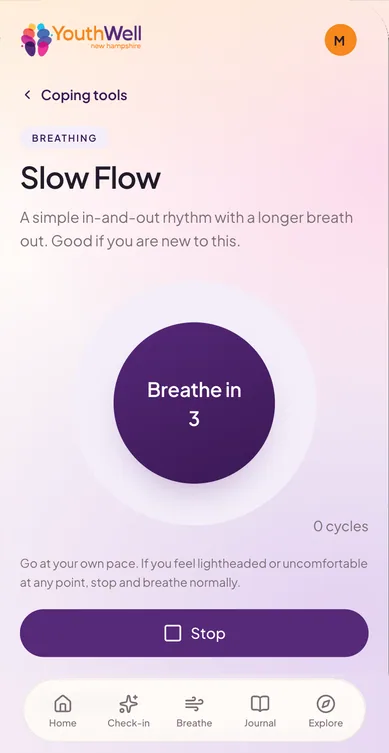
Slow Flow running: a violet orb reading “Breathe in, 3”, a cycle counter, the safety line about going at your own pace, and a Stop button.
Slow Flow in the app
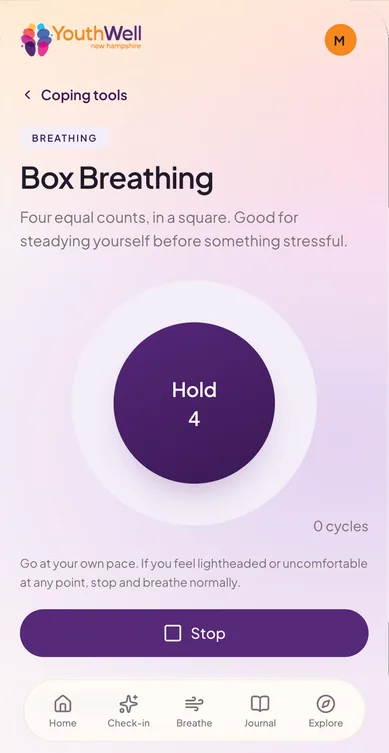
Box Breathing running, the orb reading “Hold, 4”.
Box Breathing
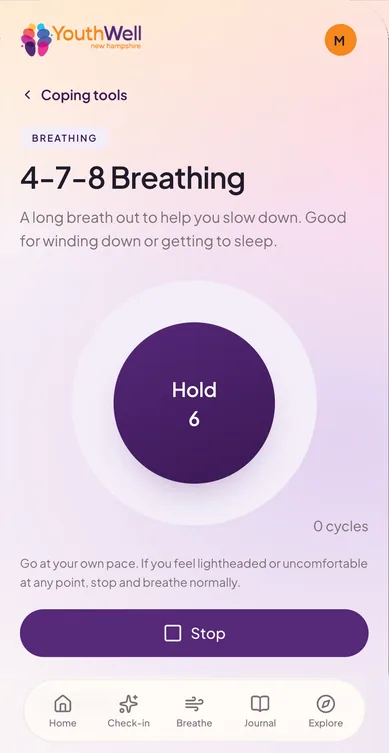
4-7-8 Breathing running, the orb reading “Hold, 6”.
4-7-8 Breathing
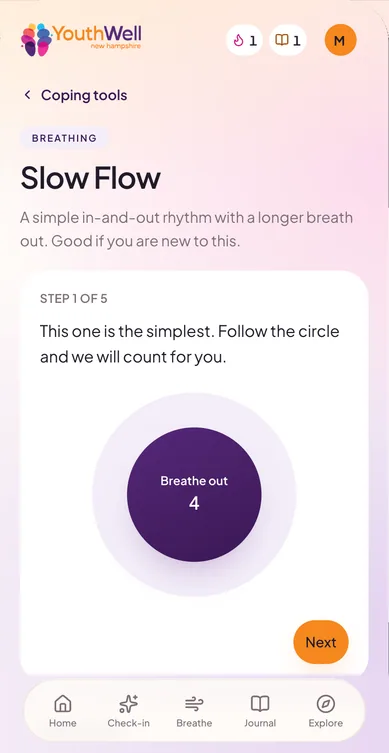
Slow Flow walkthrough, step 1 of 5: “This one is the simplest. Follow the circle and we will count for you.”
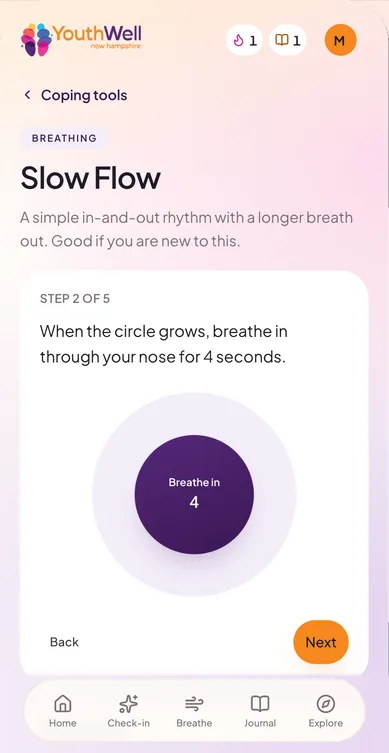
Walkthrough step 2 of 5: when the circle grows, breathe in through your nose for 4 seconds.
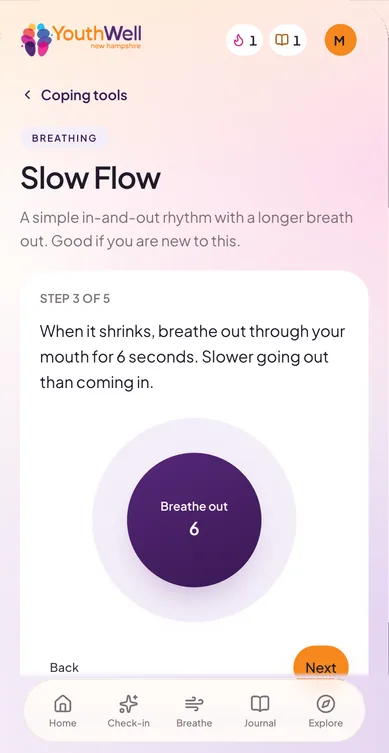
Walkthrough step 3 of 5: when it shrinks, breathe out through your mouth for 6 seconds.
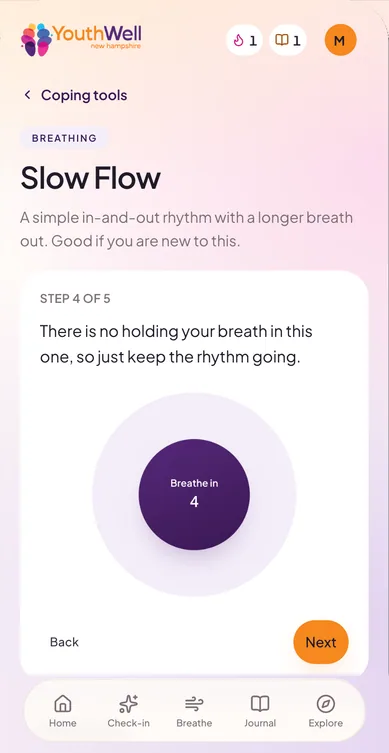
Walkthrough step 4 of 5: there is no holding your breath in this one.
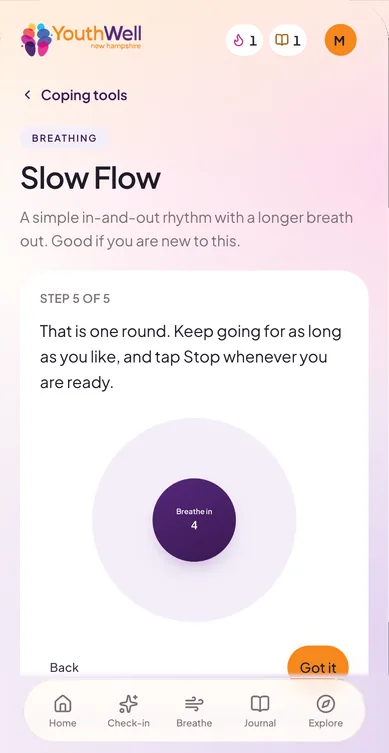
Walkthrough step 5 of 5: that is one round; keep going as long as you like and tap Stop whenever you are ready.
The first-time walkthrough, step 1 of 5.
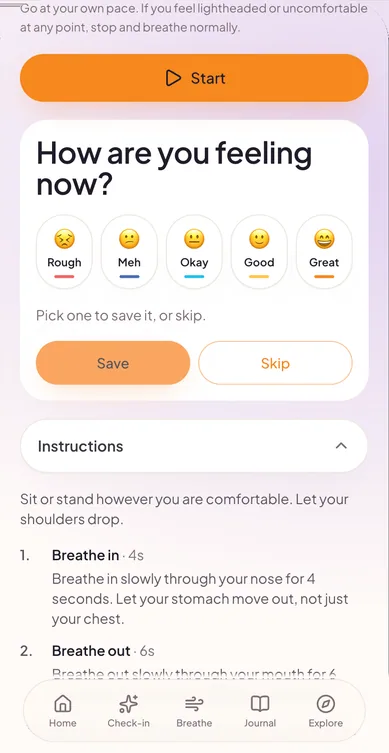
After a breathing session, an optional “How are you feeling now?” card with five moods, a Save button and a Skip button.
An optional “How are you feeling now?” after a session. Skip it anytime.

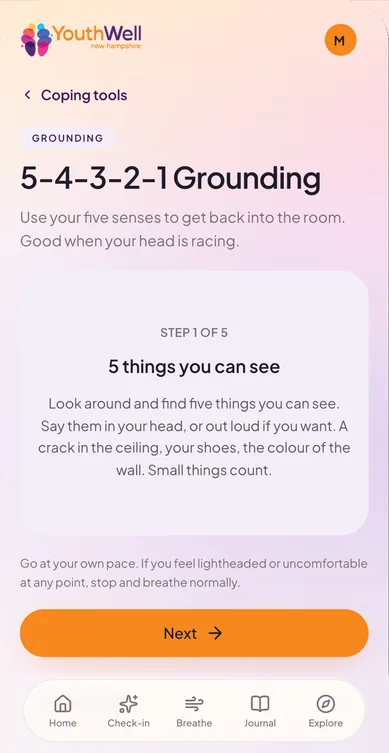
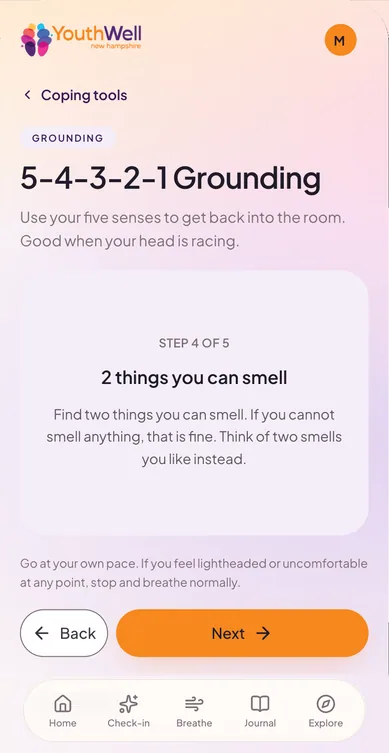
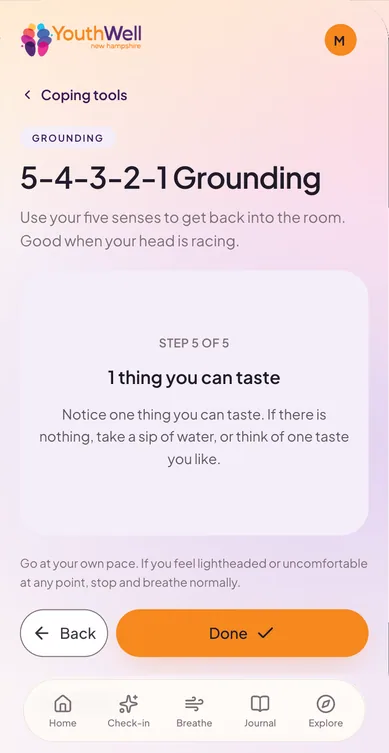
5-4-3-2-1 Grounding

Step 1 of 5

5 things you can see

Look around and find five things you can see. Say them in your head, or out loud if you want. A crack in the ceiling, your shoes, the colour of the wall. Small things count.

No timer. Take as long as you need.

3Journal

Write it down. Only you can see it.

There's a daily prompt if you want one. Notes from your check-ins land here too, labelled “From check-in”. You can edit or delete your own entries anytime.

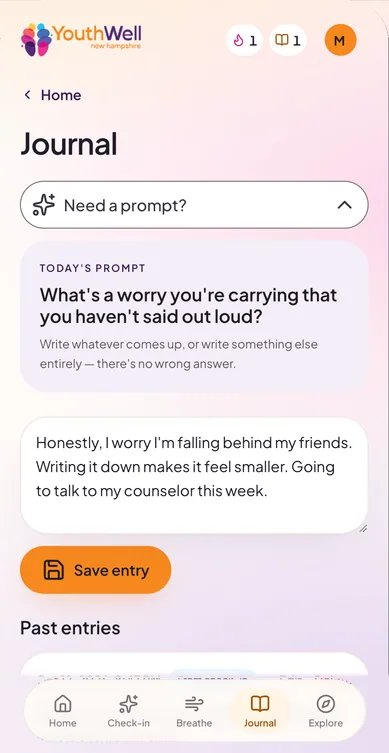
Journal with a new private entry typed in: “Honestly, I worry I'm falling behind my friends. Writing it down makes it feel smaller. Going to talk to my counselor this week.”
A private entry, written in the moment.
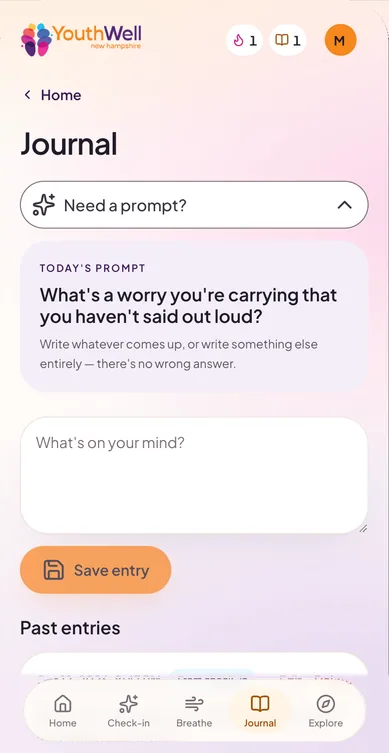
Journal with “Need a prompt?” expanded to today's prompt: “What's a worry you're carrying that you haven't said out loud?”
Need a prompt? There's one each day.
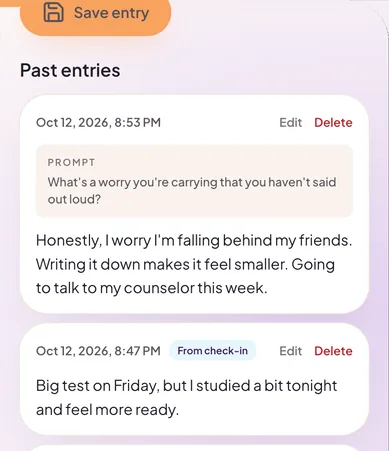
Past journal entries: one written from a prompt, and one labelled “From check-in” that came from a check-in note.
Check-in notes save here as “From check-in”.

4Explore

Find what helps, close to home.

Articles, local support, and events. Support is matched to your county in New Hampshire, alongside statewide and national options, and urgent help is always listed first.

Adding a ZIP code is optional, and young people outside New Hampshire are welcome too. Events appear for ages 13 and up.

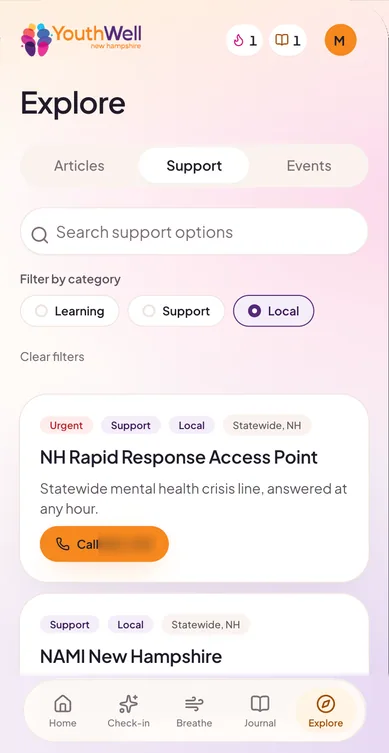
Explore, Support tab filtered to Local: an Urgent statewide New Hampshire crisis line listed first with a Call button, then more local support.
Urgent support first.
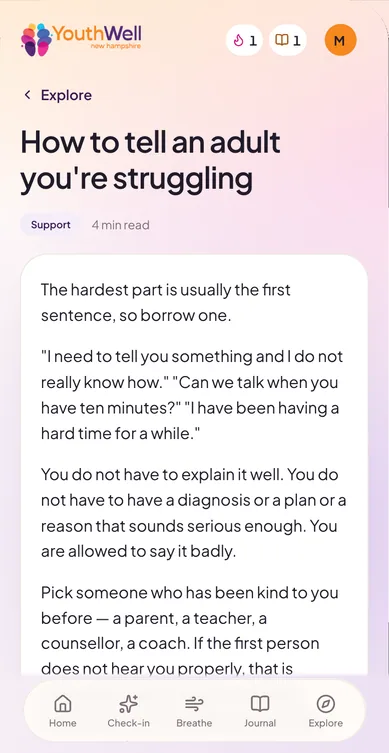
Article “How to tell an adult you're struggling”, a 4-minute read with ready-to-borrow first sentences.
How to tell an adult you're struggling.
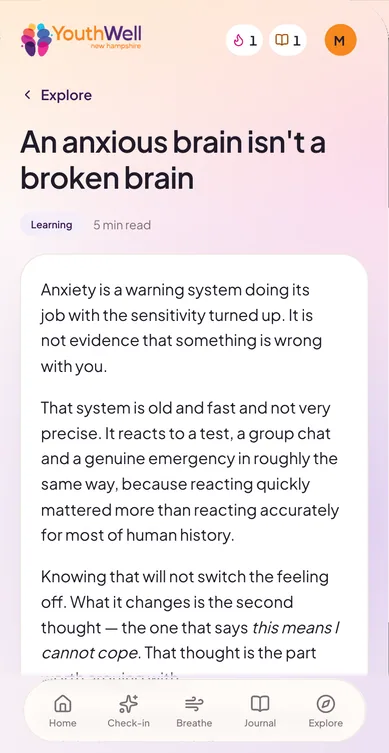
Article “An anxious brain isn't a broken brain”, explaining anxiety as a warning system with the sensitivity turned up.
An anxious brain isn't a broken brain.
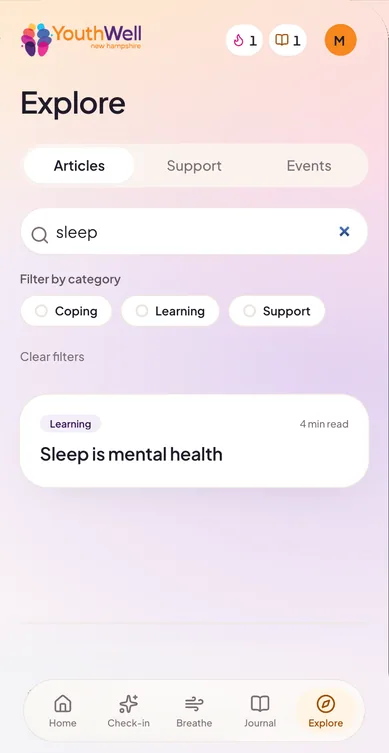
Explore, Articles tab searched for “sleep”, with filters for Coping, Learning and Support and one result: “Sleep is mental health”.
Search and filter articles.

5Progress

Showing up counts. Missing a day doesn't cost you.

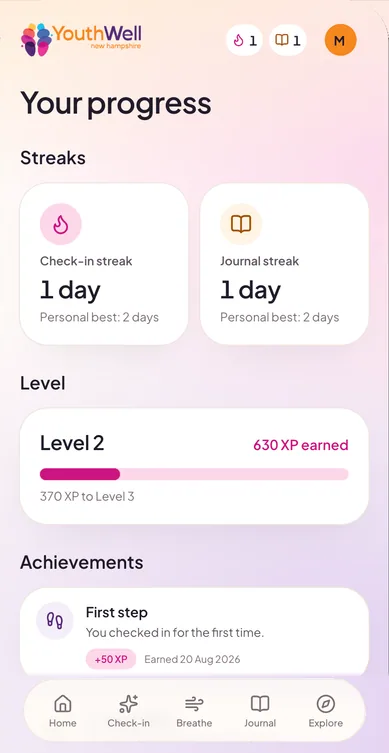
Two streaks, one for check-ins and one for journaling. XP and levels, with 500 XP per level. Seven achievements to find along the way.
  • First step
  • 7-day streak
  • 30-day streak
  • Reflector
  • Curious mind
  • Early riser
  • Installed

It's non-punitive by design: no leaderboards, no comparing yourself to anyone, no purchases or currency, and nothing that rewards being up late. If a streak lapses, you can pick it back up or start fresh. The app simply says: “You took a break.”

A small decision that says a lot

The team considered a “Night owl” achievement, then deliberately cut it. An app about feeling well shouldn't reward a young person for being awake late at night.

Your progress: a check-in streak and a journal streak, each with a personal best, a Level 2 bar showing 630 XP earned, and the start of the achievements list.
Streaks and level.
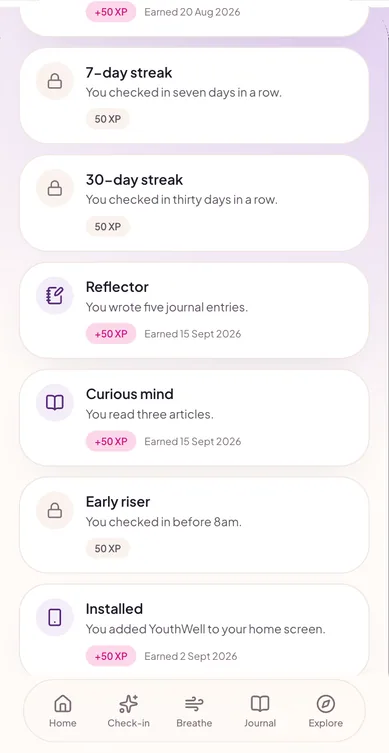
Achievements list: 7-day streak, 30-day streak, Reflector, Curious mind, Early riser and Installed, earned ones marked with plus 50 XP.
Achievements.
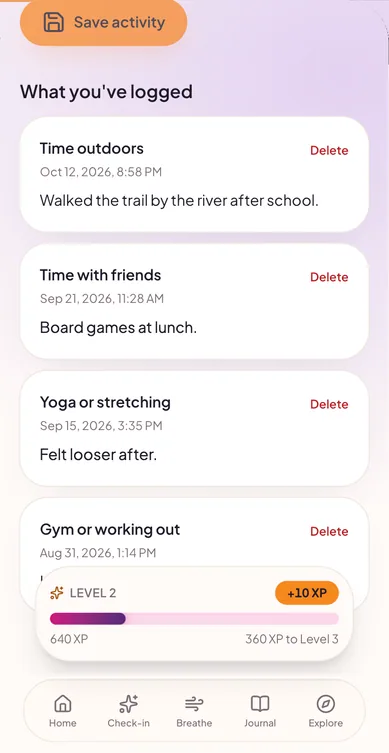
Activity log, “What you've logged”: Time outdoors, Time with friends, Yoga or stretching and Gym or working out, with a plus 10 XP toast.
XP for logging what helps.
Check-in saved: “Thanks for checking in.” with a toast showing Level 2 and plus 30 XP.
XP for checking in.

6Make it yours

Same app, your vibe.

Three themes: Bright, Coastal, and Bloom. Tap one to see this whole page change with it.

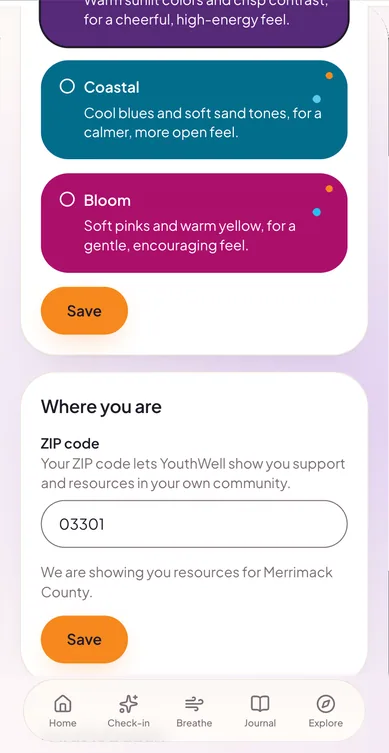
Pick your vibe and the topics you care about. Add a ZIP code for resources near you, or don't. Nobody gets turned away. Topics only change the order things appear in. Nothing is hidden.
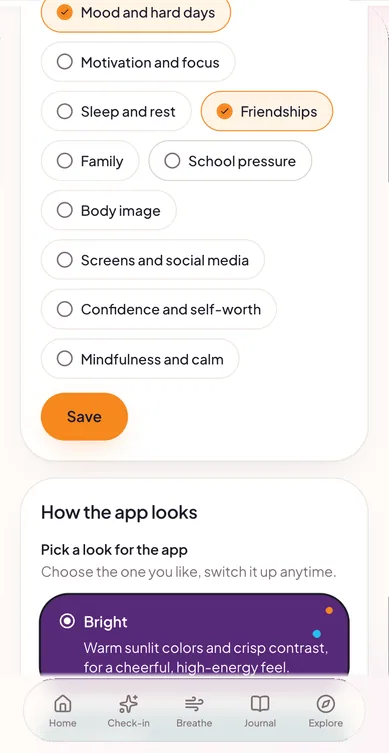
Settings: focus area chips such as Mood and hard days, Friendships, Sleep and rest and School pressure, with two selected, and the start of “How the app looks”.
Focus areas.
Settings: the Coastal and Bloom theme cards, and an optional ZIP code that shows resources for your county.
Theme, plus an optional ZIP code.

Activity log

Notice what helps.

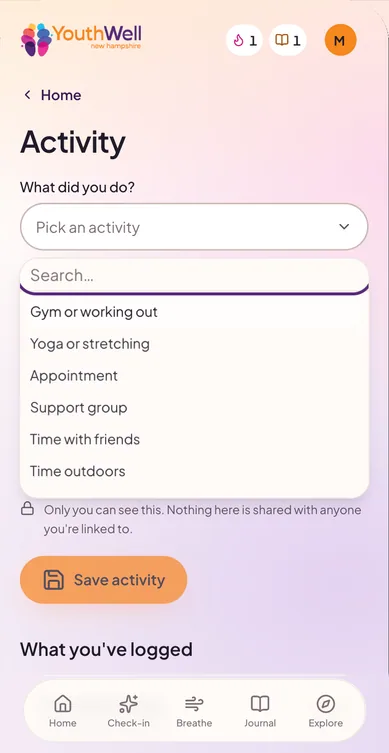
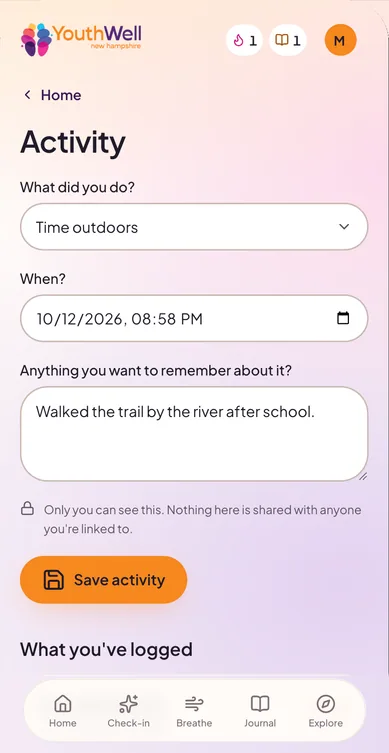
Log the things that lift you up, like time outdoors or time with friends. “Only you can see this.”

Activity log picker open with choices like Gym or working out, Yoga or stretching, Support group, Time with friends and Time outdoors. “Only you can see this.”
Activity log form filled in: Time outdoors, a date and time, and the note “Walked the trail by the river after school.”

Stay close, without reading over their shoulder.

For families

You see what your young person chooses to share, plus gentle signals that it may be a good week to check in. You also get words to use when you do.

Home dashboard

What they choose to share, in one calm place.

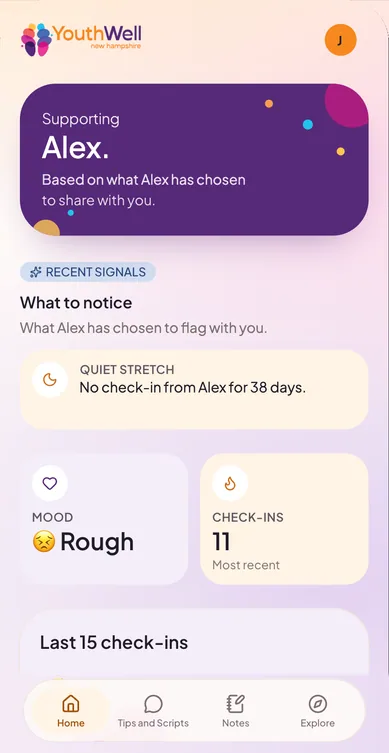
Their recent mood, their check-ins, and a chart of their last 30 check-ins. Recent signals point out a stretch of low moods (4 or more Rough or Meh check-ins in a week) or a quiet stretch with no check-ins. Signals never claim a child is “fine”.

Gentle “it might be a good week to check in” notifications come with conversation openers.

Family dashboard for a parent supporting Alex: a Recent signals card noting a quiet stretch with no check-ins, plus Alex's most recent shared mood and check-in count.
Recent signals and shared mood.
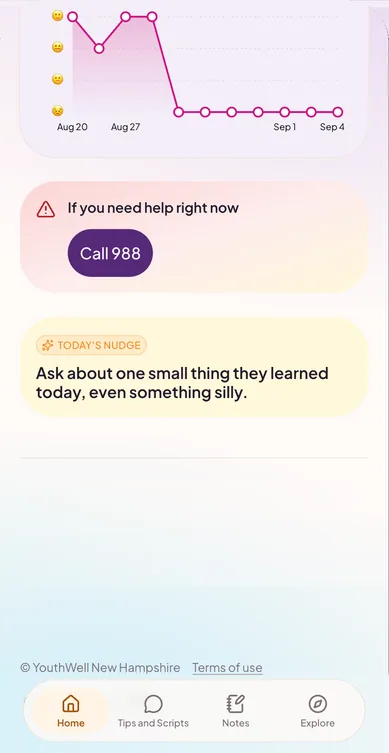
Family dashboard scrolled: a chart of shared check-ins, an “If you need help right now, Call 988” card, and today's nudge: “Ask about one small thing they learned today, even something silly.”
The chart, 988 support, and a daily nudge.

Tips and Scripts

Words for the hard moments.

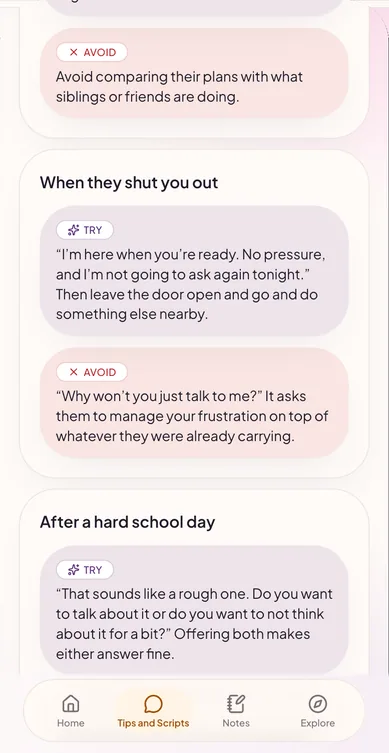
Each situation comes with what to try saying, and what to avoid. Warning Signs sit right alongside.

When they shut you out

Try

“I'm here when you're ready. No pressure, and I'm not going to ask again tonight.” Then leave the door open and go and do something else nearby.

After a hard school day

Try

“That sounds like a rough one. Do you want to talk about it or do you want to not think about it for a bit?” Offering both makes either answer fine.

Tips and Scripts: situations such as “When they shut you out” and “After a hard school day”, each with a lavender TRY script and a blush AVOID script.
Try and Avoid, side by side.
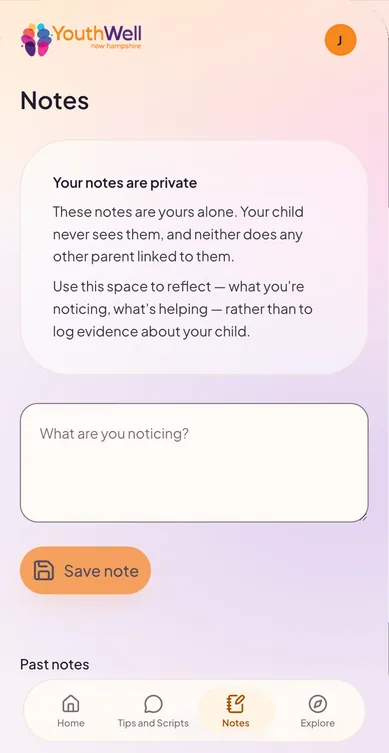
Parent notes: “Your notes are private. These notes are yours alone. Your child never sees them, and neither does any other parent linked to them.”

Private notes

Your notes are private.

Your child never sees them. A place to reflect on what you're noticing and what's helping.

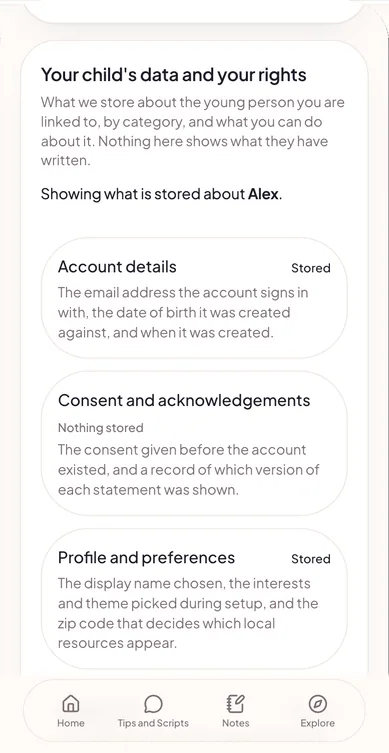
Your child's data and your rights: what is stored about Alex by category, such as account details, consent records and profile preferences, each marked Stored or Nothing stored.

Your child's data and your rights

See it. Decide about it.

See what's stored by category, request deletion, or stop further collection. For under-13 accounts, you can also revoke consent.

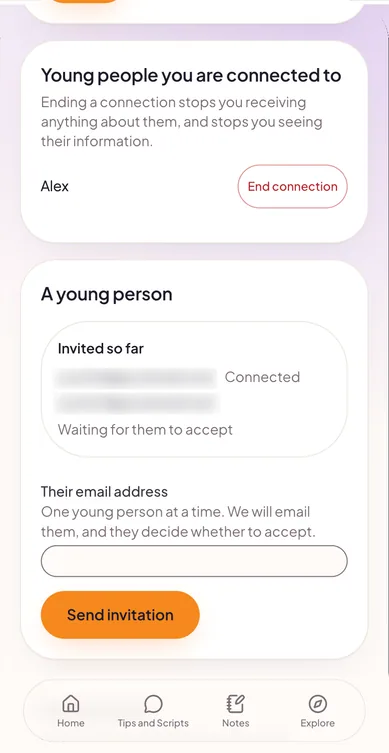
Young people you are connected to: Alex, with an End connection button, and an invitation form where you add one young person's email at a time and they decide whether to accept. Invitation emails are blurred.

Connecting is by invitation

Nobody is linked by surprise.

The young person or the parent can send an invite, and sharing is set per adult. Supporting more than one child? Switch between them.

What you'll see, and what stays theirs

Shared with you, when they choose to share

  • Recent mood
  • Check-ins
  • The mood chart
  • Recent signals

Not part of what's shared with your dashboard

  • Their journal
  • Their activity log
  • Their streaks
  • XP and achievements

Crisis alerts work differently: they always reach linked trusted adults. See how safety works.

Questions parents ask

Can my child use YouthWell without me?

Young people aged 13 and up can sign up on their own. Under 13, it's “Let's get a grown-up involved”: a parent, guardian, or trusted adult sets it up with them by email first, and no account is created until then.

Can I read my child's journal?

No. Journals are private to the young person and are not part of what's shared to your dashboard. You'll see what they choose to share.

What happens if my child is in crisis?

Support appears for them immediately, including 988. If you're their linked trusted adult, you're notified by push and email. Crisis alerts can't be switched off.

Is this therapy?

No. YouthWell is not a clinical service.

Does YouthWell use AI or chatbots?

No chatbots and no AI-generated advice. Daily thoughts, prompts, and tips are written and reviewed by people.

Who at YouthWell can see my child's data?

YouthWell staff cannot view a young person's moods, check-ins, or journal. The team's reports are de-identified, and small groups are withheld.

Small shifts, steady practice.

For educators

Trauma-informed classroom material for middle school, high school, and beyond. No special training required. No student data, ever.

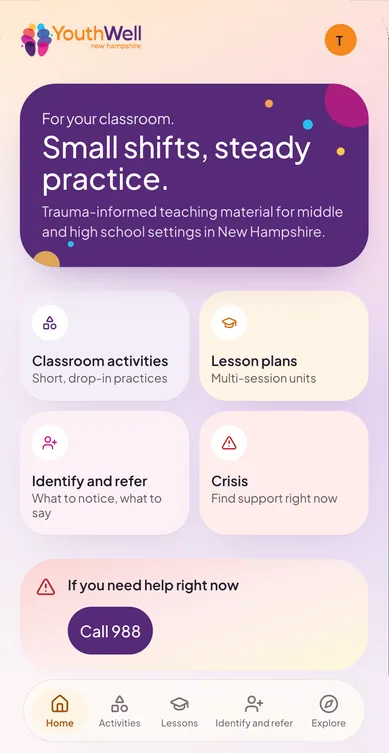
Educator home: “For your classroom. Small shifts, steady practice.” with tiles for Classroom activities, Lesson plans, Identify and refer, and Crisis, plus a Call 988 card.

A home hub with everything in reach, and a clear path to crisis support.

Classroom activities

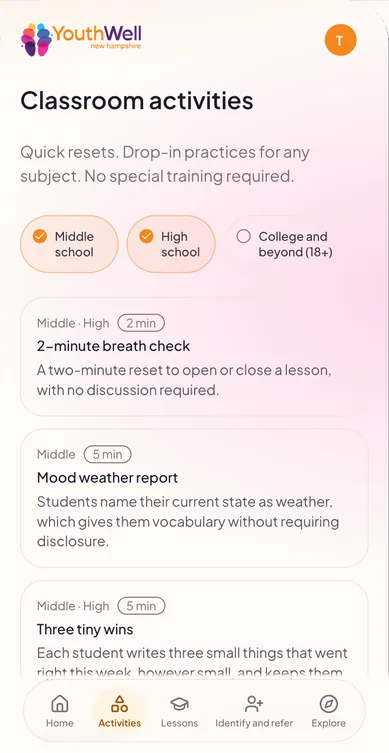
Quick drop-in resets of a few minutes each, like a “2-minute breath check”, a “Mood weather report”, or “Three tiny wins”.

Lesson plans

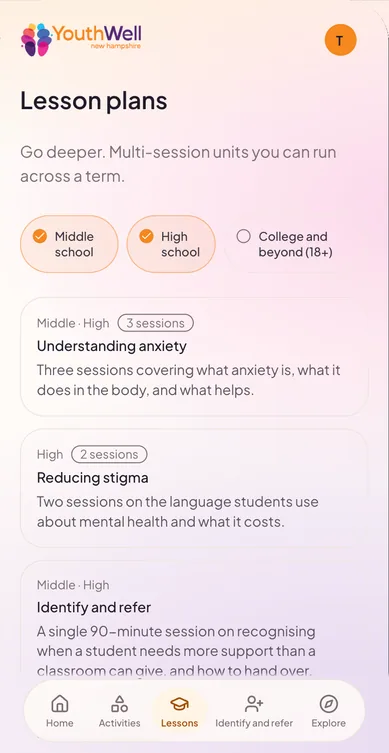
Multi-session units you can run across a term, like “Understanding anxiety” and “Reducing stigma”.

Identify and refer

What to notice and what to say, with Try and Avoid scripts and Warning Signs. When in doubt, loop in your school counselor.

Explore and grade bands

Explore lists urgent support first. Choose Middle school, High school, or College and beyond, and your bands bring the most relevant material to the top. Nothing is hidden.

Identify and refer

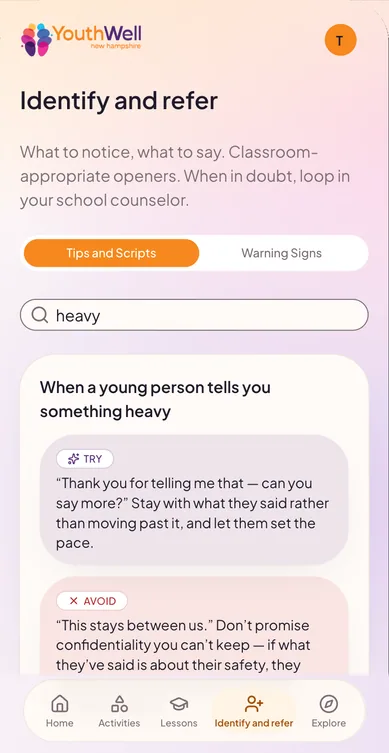
When a young person tells you something heavy

Avoid

“This stays between us.”

Don't promise confidentiality you can't keep.

“When in doubt, loop in your school counselor.”

Identify and refer script, “When a young person tells you something heavy”: TRY thanking them and asking them to say more; AVOID “This stays between us.”
Something heavy.
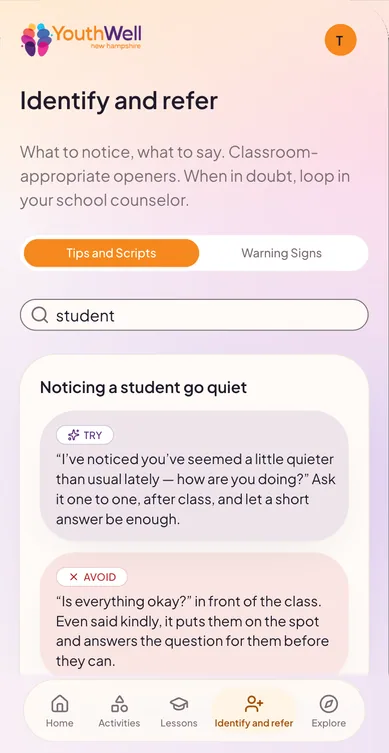
Identify and refer script, “Noticing a student go quiet”, with a TRY opener to ask one-to-one after class and an AVOID note about asking in front of the class.
A student goes quiet.
Classroom activities filtered by grade band, with drop-in practices like a 2-minute breath check, a 5-minute mood weather report and Three tiny wins.
Classroom activities.
Lesson plans: multi-session units like Understanding anxiety (3 sessions), Reducing stigma (2 sessions) and Identify and refer.
Lesson plans.

Educators never see student data. No rosters, no per-student views, no alerts.

Also a parent? One account can hold both roles, with a simple switch between them.

Private by default. Present when it matters.

Safety and privacy, by design

The promises YouthWell is built around, in plain words.

  • 988 is always one tap away

    On every screen. For immediate danger, call 911.

  • When something concerning is written, support comes first.

    YouthWell responds right away with crisis resources, and lets a linked trusted adult know. Crisis alerts can't be switched off.

  • Nobody at YouthWell receives crisis alerts or sees crisis data.

    Support goes straight to the people in a young person's life.

  • Journals are private.

    Young people choose what they share, and with which adult.

  • Under 13 starts with a grown-up.

    No account and no data until a parent, guardian, or trusted adult sets it up with them.

  • Protections for every age.

    YouthWell voluntarily follows children's-privacy best practices across all youth age groups, not just the youngest.

  • Quiet hours by default.

    From 9pm to 7am, non-urgent notifications wait. Crisis alerts still come through.

  • No leaderboards, no comparisons, no late-night rewards.

    No purchases or currency, either.

YouthWell is not a clinical service and is not a monitoring service. It doesn't replace care from a professional or the adults in a young person's life.

Built to run itself, with people in the loop.

Behind the scenes

How the YouthWell team keeps content trustworthy, current, and safe, in an admin portal with two roles: Super Admin and Content Editor.

  1. Sources
  2. Review
  3. Edit and preview
  4. Publish
  5. Monitor

Sources

Trusted content sources, checked daily.

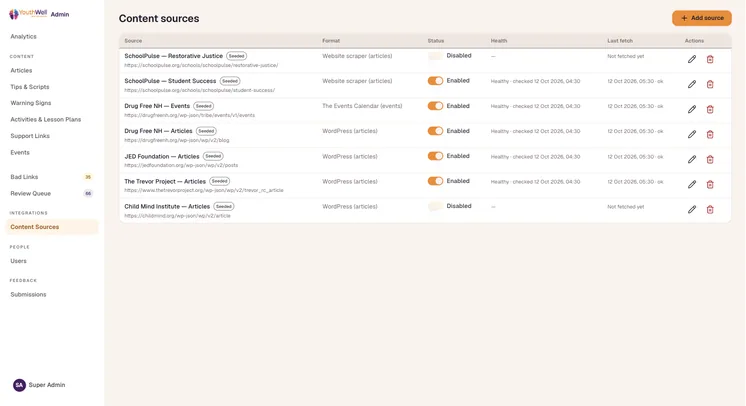
Articles and events flow in from outside content sources, such as WordPress sites and event calendars, on a daily schedule. Every source shows its health.

Admin Content sources table listing outside article and event feeds, each with its format, an enabled toggle, a health status with the last check time, and the last fetch.
Content sources, with health status
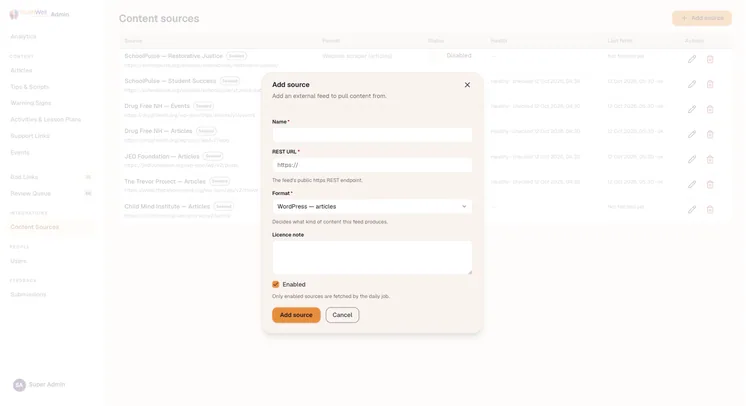
Add source dialog with fields for name, REST URL, format and licence note; only enabled sources are fetched by the daily job.
Adding a source

Review

Nothing publishes without a person saying yes.

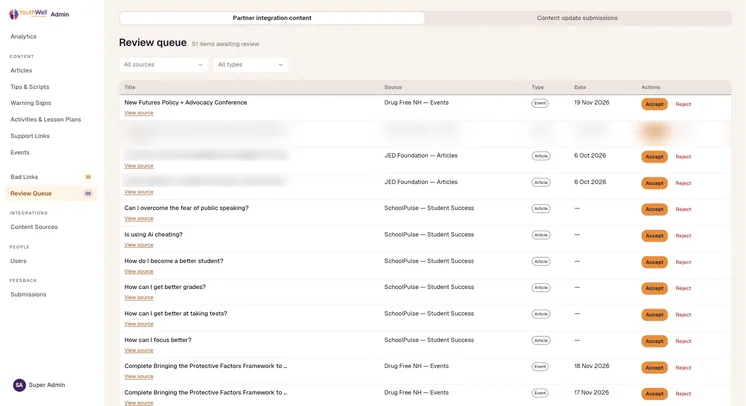
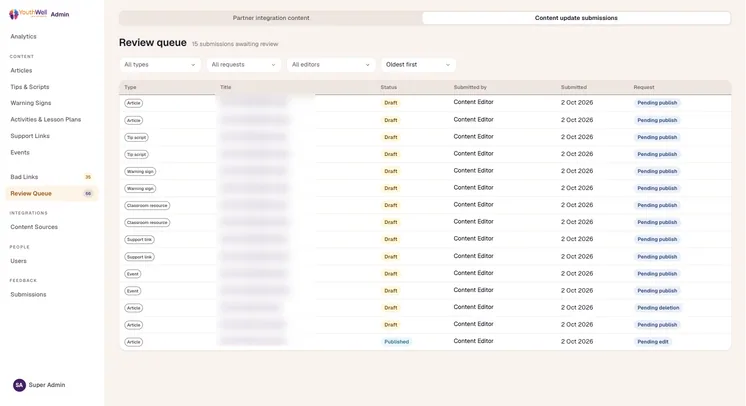
Incoming partner content and every editor change wait in a Review Queue. A Super Admin approves, edits, or rejects. That means interns can work safely as Content Editors.

Review queue, Partner integration content tab: incoming articles and events from outside sources, each waiting for an Accept or Reject. Some titles are blurred.
Partner content awaiting review (some titles blurred)
Review queue, Content update submissions tab: editor changes across articles, tip scripts, warning signs, classroom resources, support links and events, each marked Draft or Published and Pending publish, edit or deletion. Titles are blurred.
Editor changes, pending approval

Edit and preview

Edit once, preview everywhere.

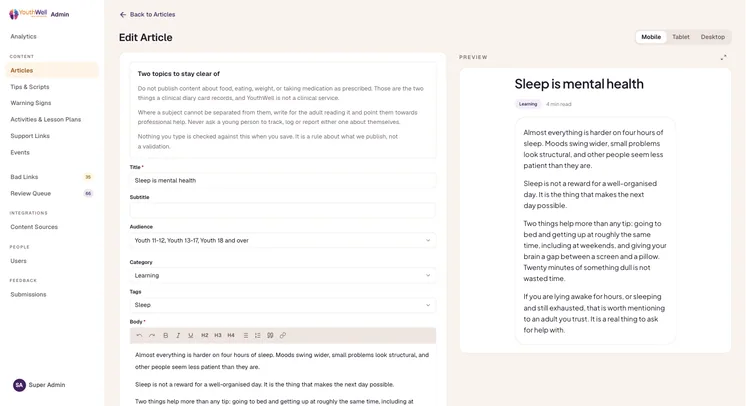
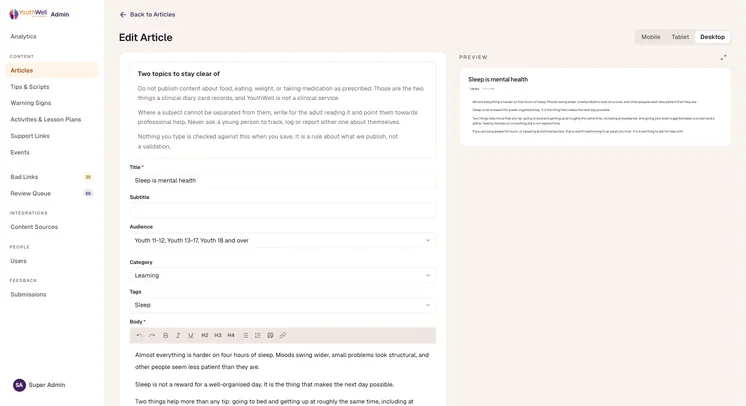
The editor has a live mobile, tablet, and desktop preview, audience targeting by age group and role, and built-in guardrails, like a standing reminder to stay clear of eating, weight, and medication topics.

Six content types: Articles, Tips & Scripts, Warning Signs, Activities & Lesson Plans, Support Links, and Events.

Edit Article screen with a standing reminder of two topics to stay clear of, fields for title, audience, category and tags, and a live mobile preview of the article “Sleep is mental health”.
Live mobile preview
The same Edit Article screen with the preview switched to desktop width.
Desktop preview

Publish, then monitor

Broken links get caught.

Every outbound link and every content source is checked daily. A link is flagged only after failing twice in a row, so editors aren't chasing false alarms.

People

People, roles, and anonymous feedback.

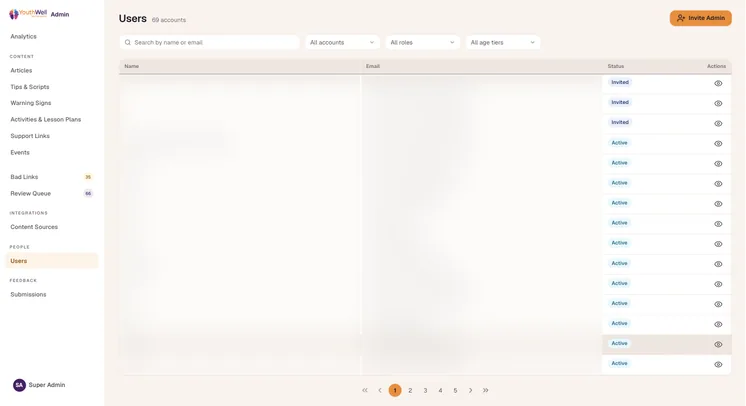
Admin access is role-based: Super Admin and Content Editor, and editor changes always need a Super Admin's approval. Young people can leave anonymous feedback in the app whenever they like, and are never prompted to. The admin portal itself is built to WCAG AA.

Admin Users list with filters for account type, role and age tier, and a status for each account. Names and emails are blurred.
Users and roles (names and emails blurred)

See what's working, without exposing a single young person.

Impact, measured responsibly

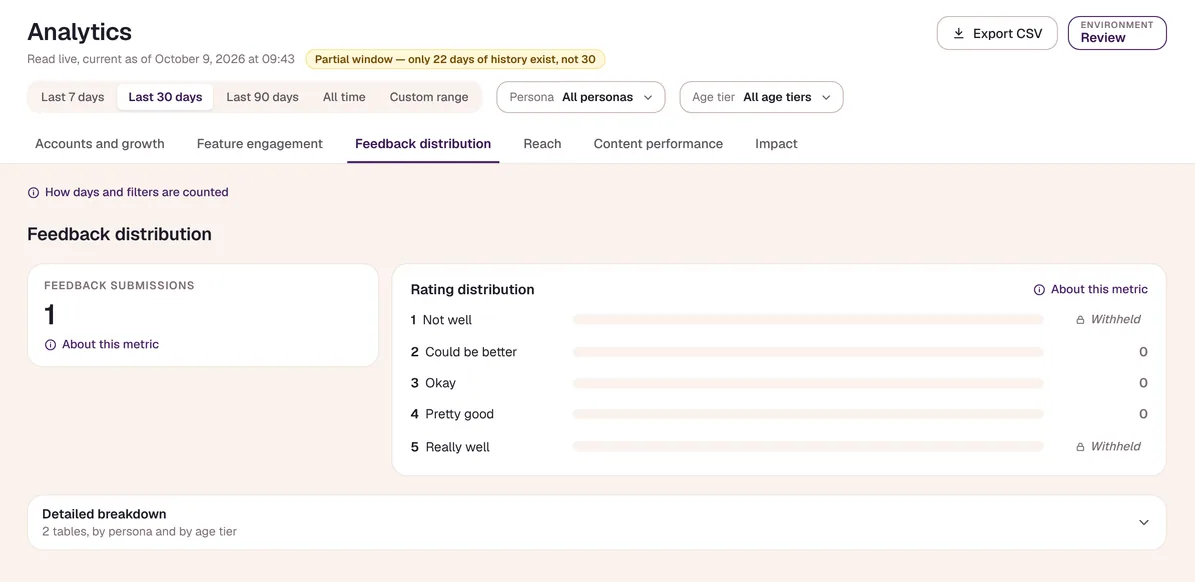
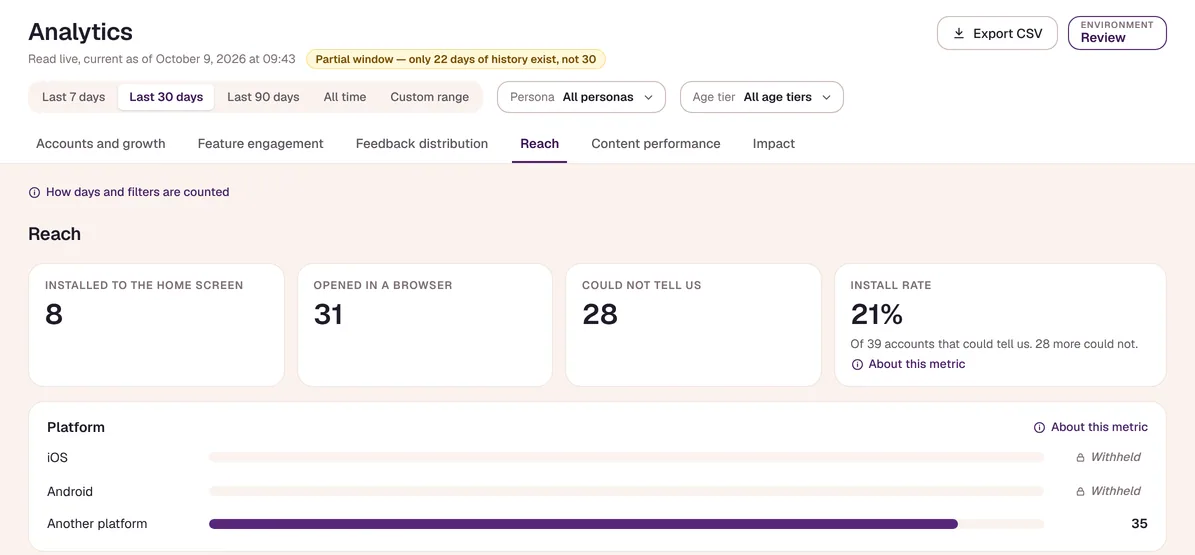
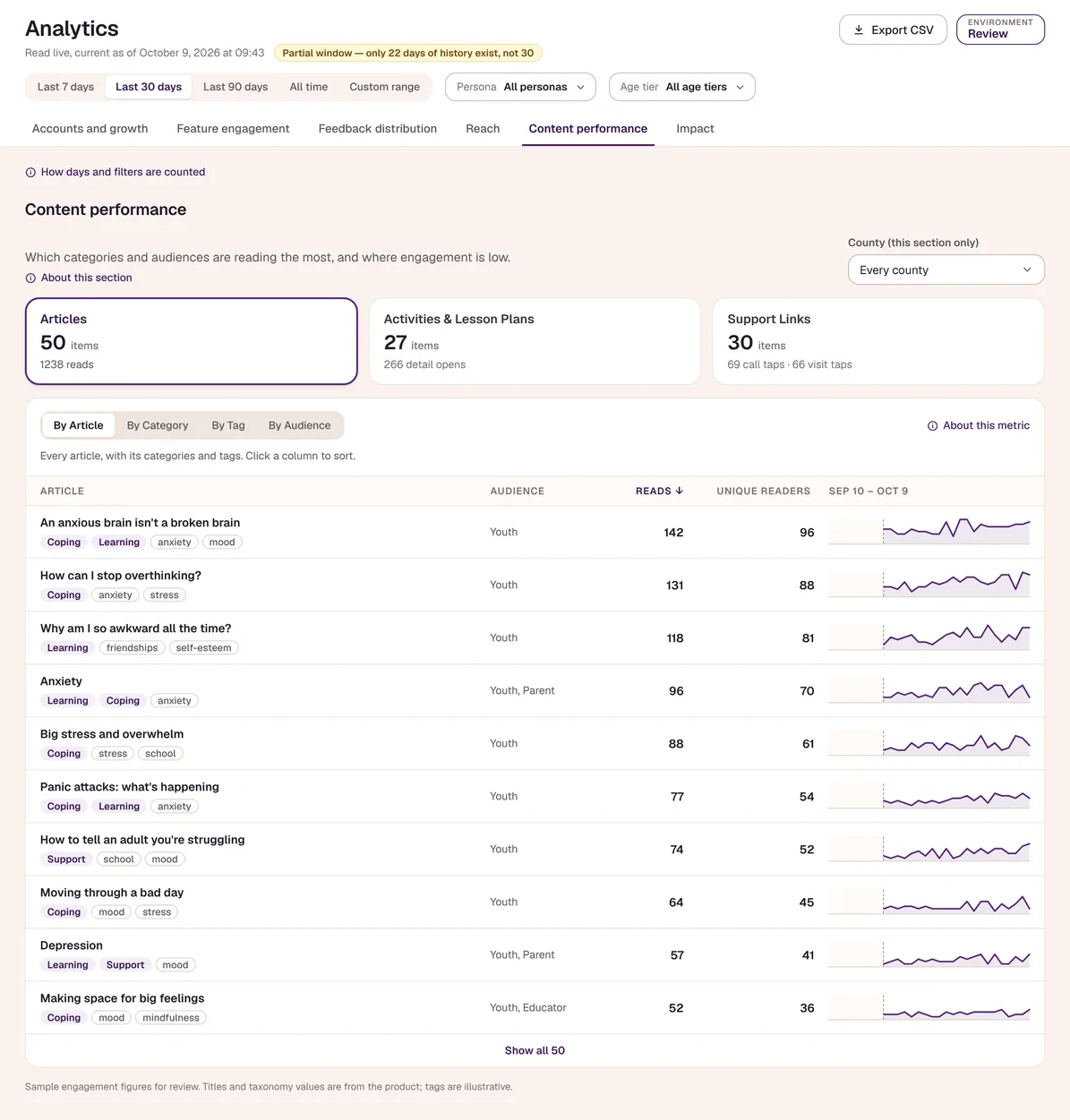
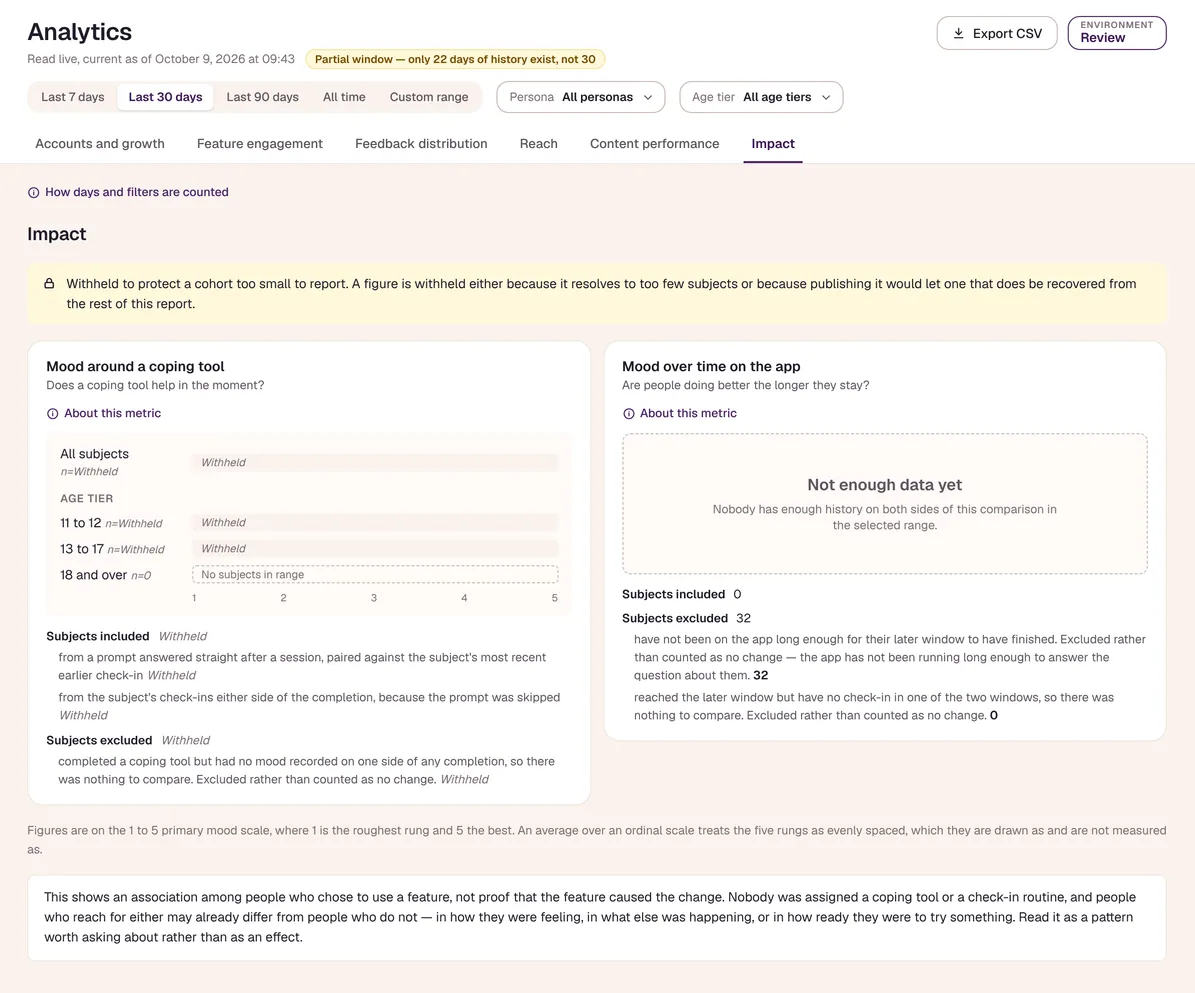
For funders, boards, and school and community partners. Analytics are for Super Admins only, across six views.

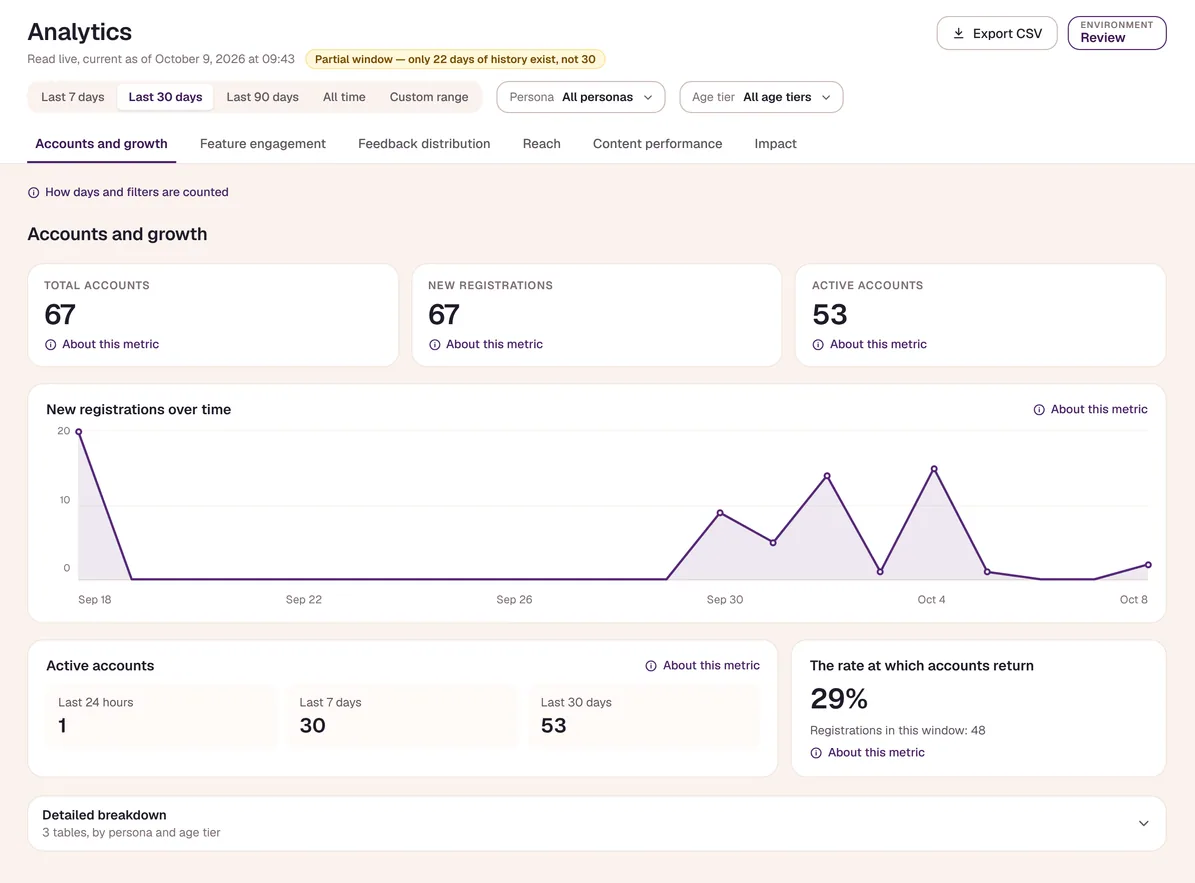
  • Accounts, active use, and return rate.
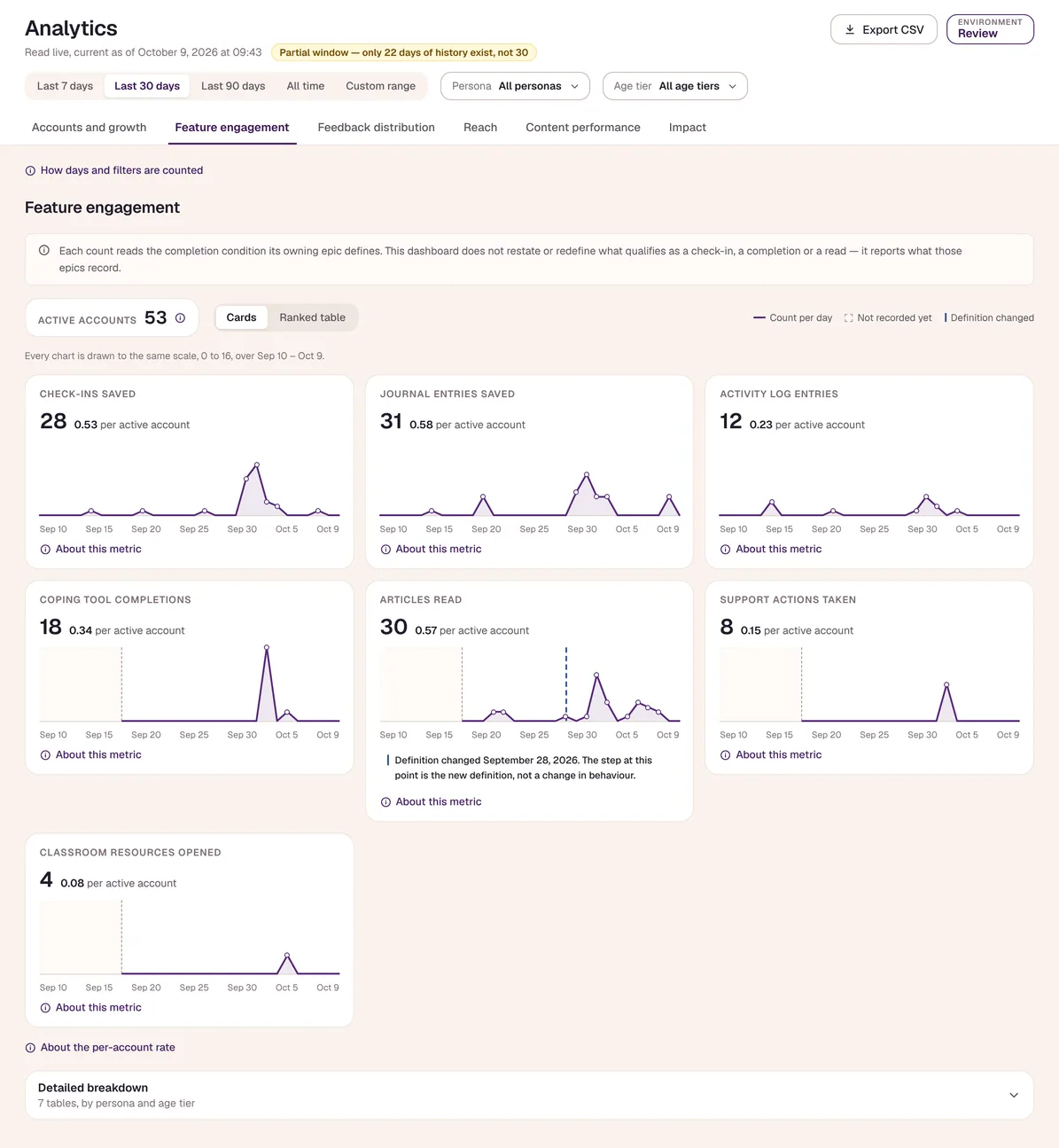
  • Which features get used, with every metric broken down by role and age group.
  • Where accounts are across New Hampshire counties.
  • Which articles, activities, and support links get used most.
  • Two honest impact views: mood around a coping tool, and mood over time on the app. Both are shown as association, not cause.
  • Everything is de-identified. Any group too small to report safely (fewer than five people) is withheld. There are no crisis figures and no way to drill into an individual.
  • Reports export to CSV.
Sample dataSample-data Accounts and growth tab: total accounts, new registrations, active accounts, a chart of new registrations over time, and the rate at which accounts return.

Built for every device.

  • Installs from the browser to the home screen on iPhone, Android, and desktop. No app store needed.
  • Push notifications with quiet hours, and you control which notifications you get.
  • On iPhone, notifications need YouthWell added to the home screen first.

By the numbers

Facts about how YouthWell is built.

  • 3experiences: youth, families, educators
  • 3youth age groups: 11 to 12, 13 to 17, 18+
  • 3themes
  • 4coping tools
  • 6steps in a check-in, 1 required
  • 7achievements
  • 0leaderboards
  • 1 tapto 988
  • Dailylink checks
  • 5minimum group size before any figure is shown

Bring YouthWell to your school, family, or community.